Zero budget Release timing Low effort30 min
Make a Spotify Canvas loop from footage you already have
Turn a clip from your camera roll into an 8 second Spotify Canvas that loops. Specs, steps and fixes, in about 30 minutes.

What are the Canvas rules?
A Canvas is 3 to 8 seconds long, vertical 9:16, between 720 and 1080 pixels tall, and saved as an MP4 or JPG. It plays on a loop behind your song on Spotify. Spotify advises against footage of talking, singing or rapping, against rapid cuts, and against intense flashing. It also warns that edges may be cut off on some phones, so treat the outer strip of the frame as spare. Make yours 8 seconds, the longest allowed, so the loop comes back around as rarely as it can. This is a 30 minute job. Do it in the week before release, while the song is the only thing on your list.
What do you need before you start?
You need one steady clip, an editor you already know and about 30 minutes.
- One clip of at least 4 seconds, shot with a steady camera and slow motion
- An editor: CapCut on your phone, DaVinci Resolve on a computer, or any editor that can reverse a clip
- Access to your track in Spotify for Artists
- Permission to use everything in the frame
Only use footage you shot yourself or have permission to use. If a person’s face or someone’s private property is in the clip, get a short written OK first. This is not legal advice.
Which clip should you pick?
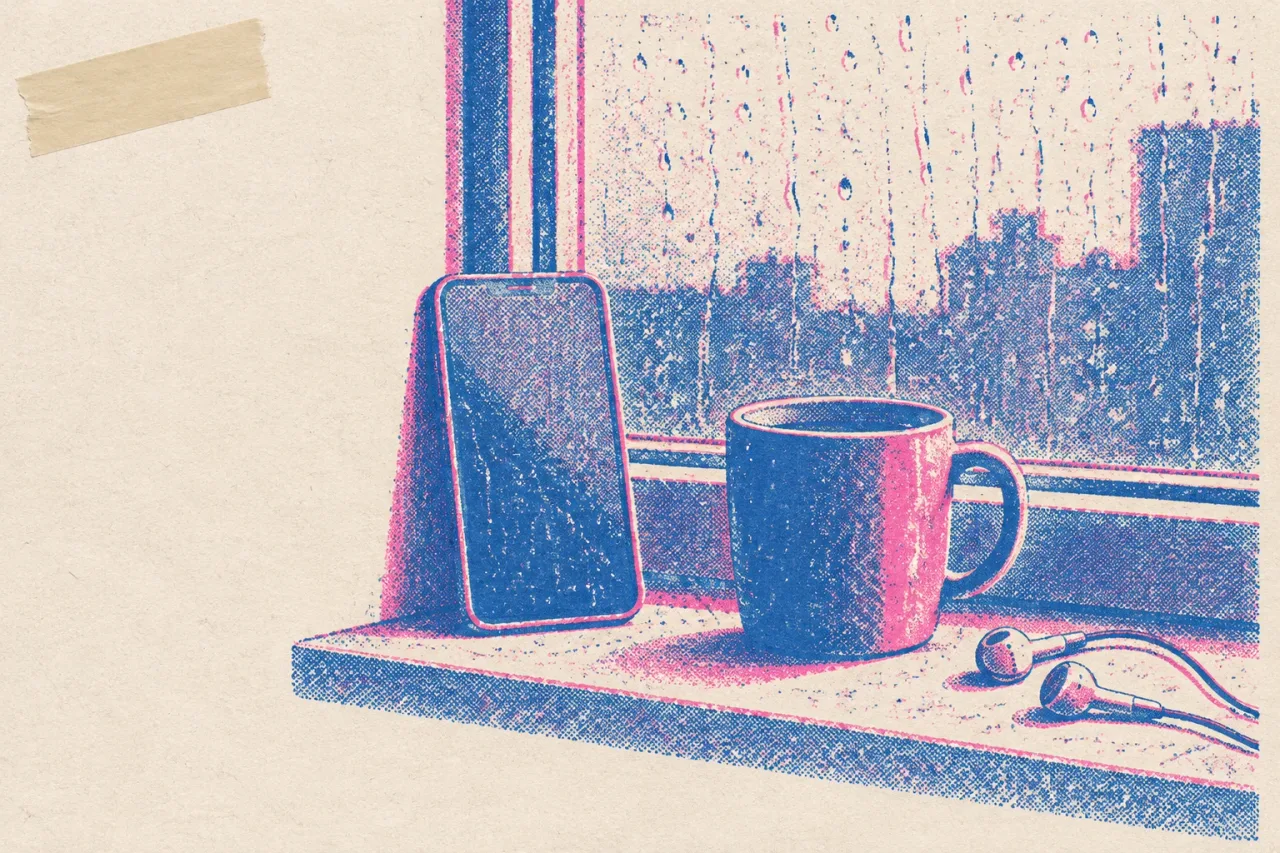
Pick the steadiest clip with one slow, gentle motion in it. Spend 10 minutes in your camera roll and shortlist 3 clips. Good candidates are rain on a window, a slow pan along a street at night, or smoke curling past a lamp. Skip clips of you singing, talking or rapping, since Spotify advises against them. Skip anything with hard cuts or flashing lights, such as phone footage from a loud gig. Then choose the one that matches the mood of the song. A quiet ballad wants slow movement. A fast track still wants slow movement, because the loop will play over and over.
What are the steps from clip to upload?
Cut 4 seconds, add the same 4 seconds in reverse, export, and upload. Forward then backward gives you 8 seconds with no visible jump, because the last frame of the reversed copy is the first frame of the original.
- Import the clip and trim the smoothest 4 seconds.
- Duplicate it and place the copy right after the original.
- Reverse the copy. The timeline now reads 8 seconds.
- Crop to 9:16 and keep the main subject in the middle, away from the edges.
- Remove the clip’s audio.
- Export an MP4 at 1080 pixels tall.
- Play the file on repeat 3 times. If you see a jump, trim a few frames and export again.
- Upload the MP4 to your track in Spotify for Artists.
What goes wrong, and what do you do?
Most problems come from the clip, so change the clip before you change the edit.
- Reverse looks odd: people walking or water pouring show it at once. Pick a clip with no clear direction.
- Subject sits near an edge: re-crop it toward the center, since some phones cut the edges.
- Visible jump when it loops: trim a few frames off the start of the first copy.
- Shaky footage: a loop makes the shake obvious. Try the next clip on your shortlist.
- Out of energy after 45 minutes: export one frame as a JPG, which Spotify accepts, and upload that.
A still image is a fine Canvas for this release. You can swap in a loop for the next one.
What if you have no footage?
Film 10 seconds now, or pay 1 credit and let someone else cut it. Filming takes about 5 minutes. Hold the phone upright, rest your elbows on a table or windowsill, and record 10 seconds of something that moves slowly, like steam, curtains or the street below. Then follow the steps above. If you would rather skip filming, Rotor Videos makes a Spotify Canvas for 1 credit, and a single credit costs $9.99. You can preview your video free as many times as you like before you download it. Rotor Videos works from licensed footage cut to your track.
How do you make this easier next time?
Film 10 seconds of Canvas footage whenever you shoot anything else. Hold the phone upright, keep it still and let something move in front of it. Save those clips in one album called Canvas. When the next release comes, you pick from a short shelf of clips instead of digging through your whole camera roll. Keep your editor project too, set up at 9:16 with the forward and reverse copies already placed. Next time the job shrinks to swapping the clip and exporting. Put the Canvas on your release checklist in the same week you finish the cover art, so it never becomes a Thursday night panic.
Frequently asked questions
How long can a Spotify Canvas be?
A Canvas can be 3 to 8 seconds long. Use the full 8 seconds so the loop repeats as rarely as possible.
Can I use a clip of myself singing as a Canvas?
Spotify advises against footage of talking, singing or rapping in a Canvas. Pick a clip of something else, like a street, a window or a slow object in motion.
What size should a Spotify Canvas file be?
Make it vertical 9:16, between 720 and 1080 pixels tall, as an MP4 or JPG. Keep important detail away from the edges, because some phones may cut them off.
Can a still photo be a Canvas?
Yes, JPG is an accepted format alongside MP4. A still is a good fallback when you are short on time, and you can replace it with a loop later.
What if I have no footage at all?
Film 10 seconds of something slow with your phone held upright, which takes about 5 minutes. Or use Rotor Videos, which makes a Spotify Canvas for 1 credit.